/ USD
/ USD
Choosing a workstation doesn't start with "which processor," but with "what exactly is it for" – it's the workload type, not the budget, that determines a sensible specification. In short: for CAD and modeling, a high CPU clock speed and a certified card matter most; for CAE simulations and rendering – many cores and large graphics memory; and across the board, ECC memory and a fast NVMe drive matter. Below, we break the decision down into five steps, point out the most common mistakes, and explain when a pricier workstation genuinely pays for itself.
Step 1: What is the workstation for?
Before looking at specs, split the work into two workload types – because each rewards different components:
- computational workloads – structural analysis, CFD, multi-physics simulations; these benefit from many cores and large memory,
- interactive workloads – rotating a 3D model, meshing, reviewing results; these reward a high CPU clock speed and a strong graphics card.
The second thing to establish upfront is ISV certification for your software. This is what separates a workstation from a "powerful PC": the manufacturer tests the hardware for thousands of hours with specific applications, to rule out instability caused by a combination of drivers, firmware, and software version. A "gaming" card with similar specs doesn't come with that guarantee. Dell publishes its certification list openly – it's worth checking for SolidWorks, Revit, or AutoCAD before choosing a configuration.
Step 2: What processor for a workstation?
Here's the first purchasing myth to debunk: more cores doesn't always mean faster. Most CAD and visualization software is single- or lightly-threaded, so for these tasks 6 cores is a reasonable minimum, and going beyond 8 cores rarely makes sense – it's better to invest in a higher clock speed than in additional cores.
This leads to a common mistake: buying a workstation with two processors "just in case." A second CPU increases raw compute power, but introduces a slight drop in interactive tasks (a single thread feeding the graphics card). If your software doesn't scale across multiple cores, two CPUs will genuinely hurt your working experience. It's also worth comparing processors not by a single "nominal frequency," but by their full clock range – from the low-frequency mode up to maximum single-core Turbo.
Step 3: How do you choose a graphics card (GPU)?
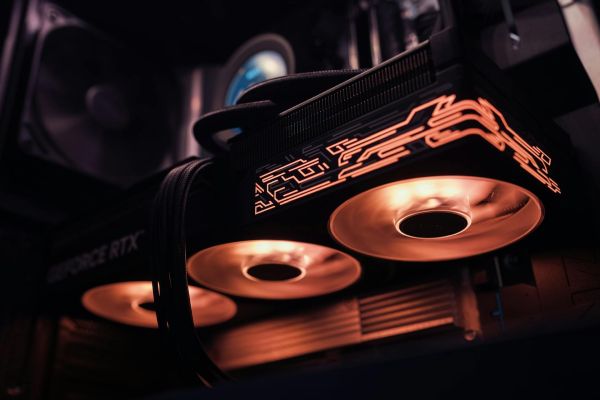
The rule of thumb is simple: look for a card that hits over 30 fps in your key applications, and for VR work – over 90 fps, to avoid simulator sickness. When comparing cards within the same class, use the SPECviewperf benchmark, since results can vary significantly depending on the application and model complexity.
The most important factor when choosing a GPU, however, often isn't clock speed but the amount of graphics memory – and this is where a desktop workstation's advantage over a laptop is greatest:
Desktop cards offer many times more graphics memory than mobile ones. Data: Dell / NVIDIA.
Requirements need to be checked per application, not from general rankings – for example, real-time simulation in ANSYS Discovery Live requires a card with at least 4 GB (8 GB recommended). In laptops, there's an additional factor: cooling. A 15-inch model might power the same card at up to 90 W, while a 17-inch one with better cooling can go up to 115 W – so two laptops "with the same card" can perform noticeably differently.
Step 4: How much RAM does a workstation need?
The starting point for a designer combining, say, SolidWorks with KeyShot is 32 GB of RAM, and for larger datasets and more complex models – 64 GB or more. Requirements grow with every software update, so it's worth buying with some headroom.
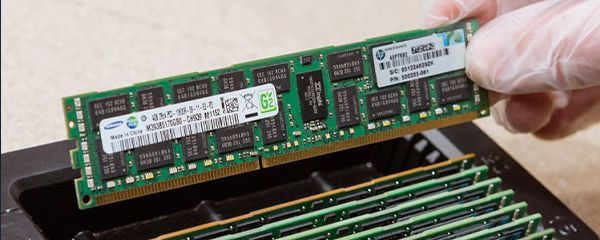
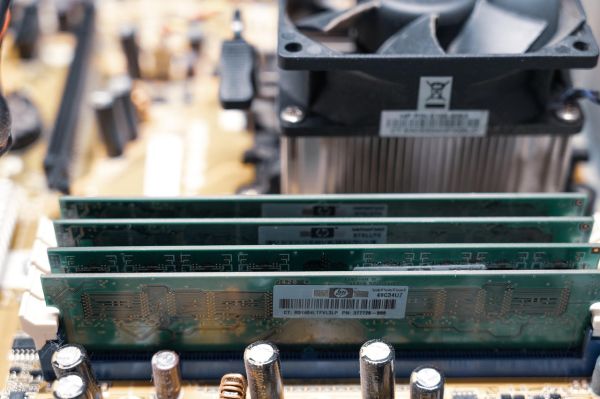
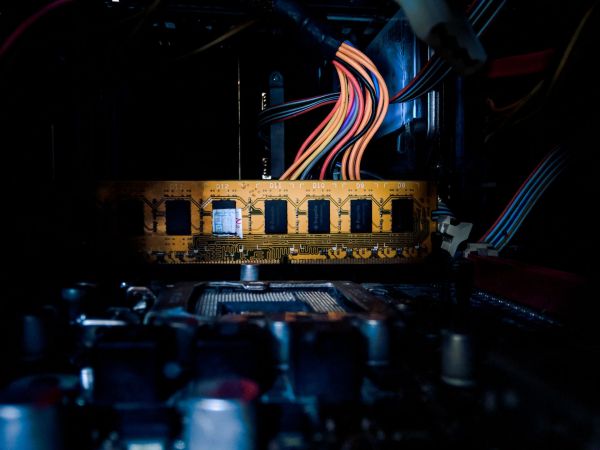
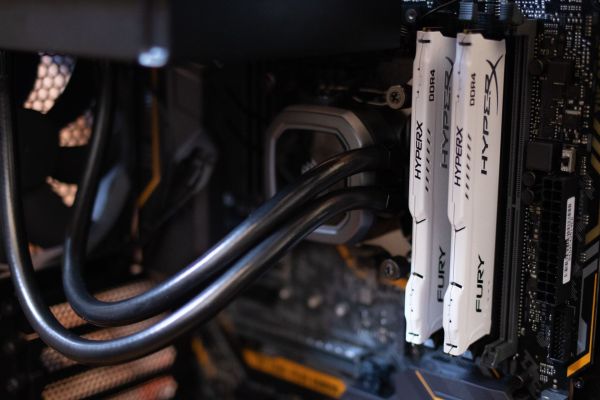
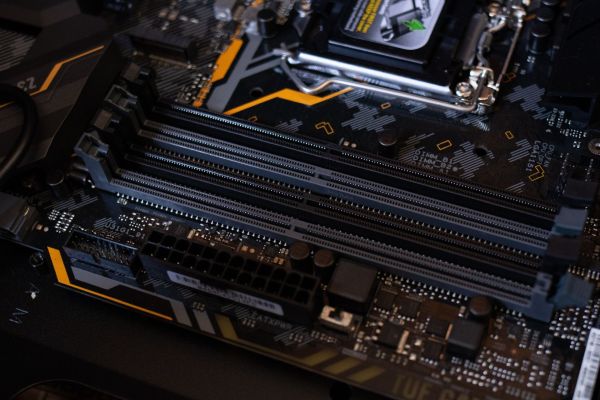
Two things few people keep in mind. First, module configuration: for the same total capacity, it's better to fill more slots with smaller modules (8×8 GB) than fewer slots with larger ones (4×16 GB) – this increases memory bandwidth, which measurably improves computational performance. Second, ECC memory (available only with Xeon processors), which detects and corrects single-bit errors. In engineering simulations or financial calculations, where an error is costly, this isn't an extra – it's a requirement.
Step 5: What storage – NVMe, SSD, or HDD?
The best setup splits roles rather than choosing "either-or":
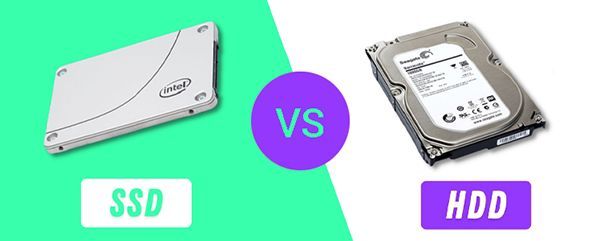
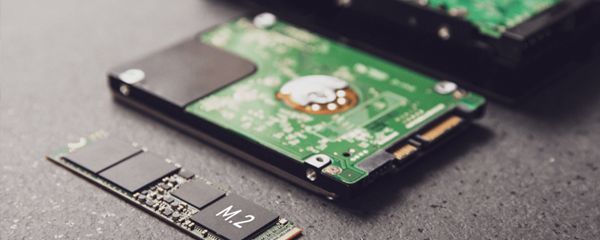
- NVMe (M.2 PCIe) as the system and working drive – noticeably faster read/write than SATA SSD,
- HDD as secondary storage – the best cost per GB for large files: textures, materials, HDRI environments.
There's also a firm manufacturer warning here: avoid RAID 5 on a workstation with high-capacity drives. Rebuilding such an array can be risky, and on a software controller, parity calculations put heavy load on the CPU, reducing performance more than other RAID levels.
The most common mistakes when choosing a workstation
Based on our experience, four mistakes come up most often:
- a second processor "just in case" when the software doesn't actually scale across multiple cores – this genuinely reduces performance in interactive tasks,
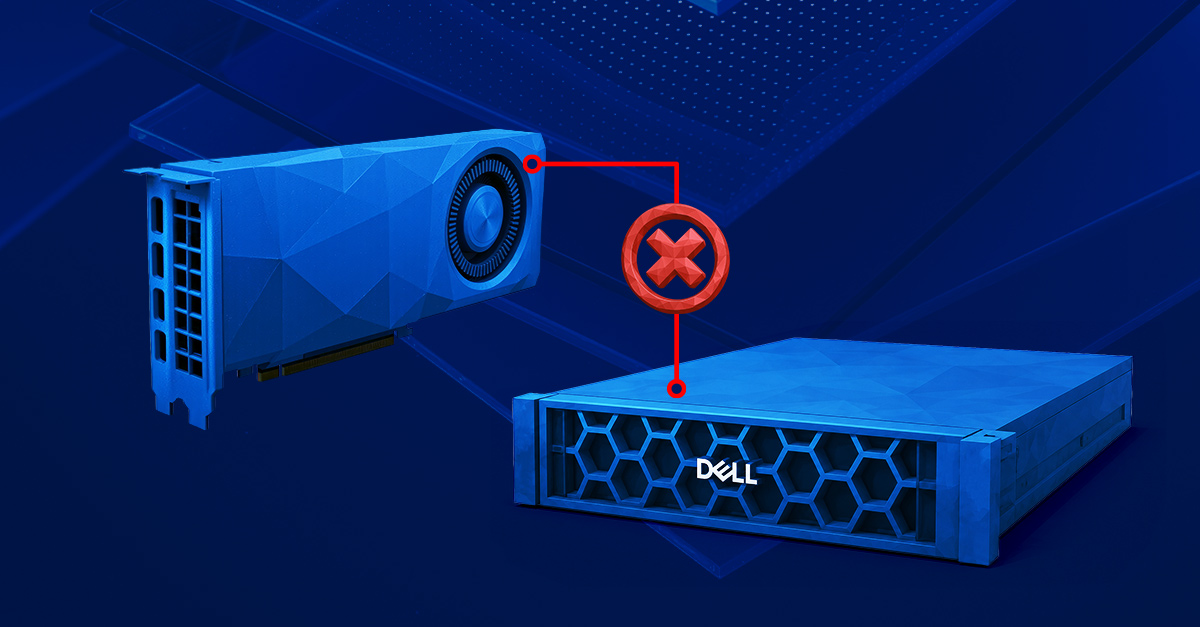
- a workstation configured for CAD, on which someone tries to render in real time using an entry-level card – the manufacturer states outright that it simply won't work,
- RAID 5 on a software controller or large drives – risk of CPU overload and a failed rebuild,
- skipping the ISV certification list for your software before buying.
There's one common thread: it should be the application's requirements, not the budget, that defines the specification.
Does a pricier workstation pay off?
This is surprisingly easy to calculate. Eliminating system lag – the so-called coffee cup syndrome, waiting for something to finish computing – can boost productivity by up to 10%. For a specialist costing 100,000 a year (in any currency), that's 10,000 a year in savings, which quickly outweighs the price difference of a better configuration. A well-chosen workstation isn't a cost – it's an investment that pays for itself in the team's working time.
Which workstation should you choose for which tasks?
|
Application |
Hardware priority |
Suggestion from our range |
|
2D/3D CAD, light visualization |
high CPU clock speed, pro card |
|
|
CAE simulations, multi-threaded rendering |
many cores, lots of RAM and VRAM |
|
|
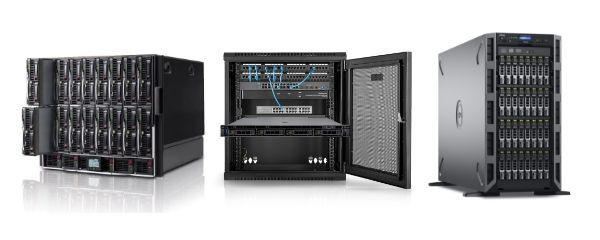
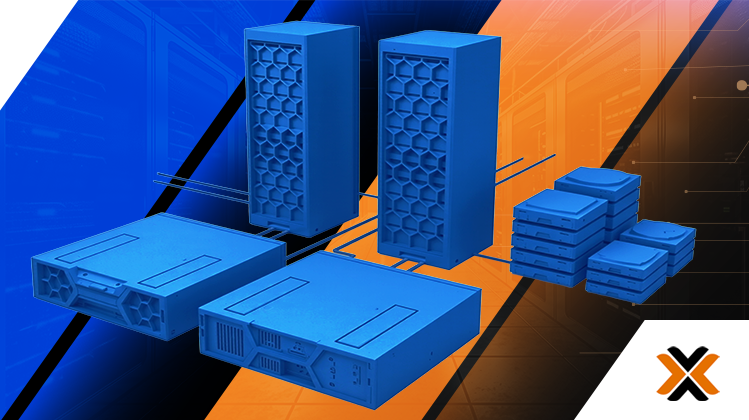
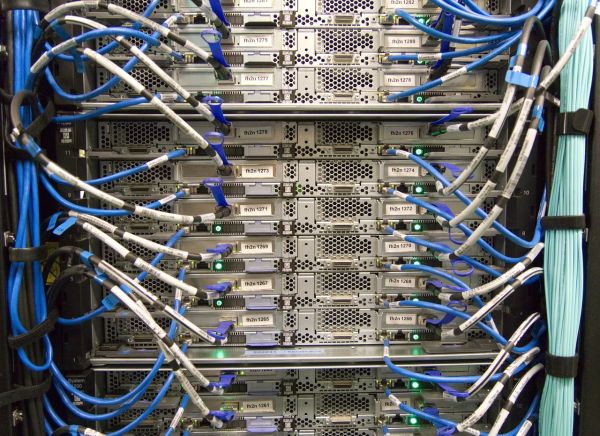
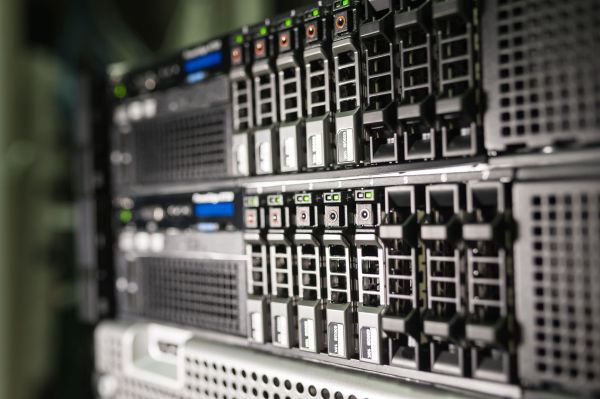
Render farm / shared workstation in a server room |
rack format, powerful GPU |
We match hardware to specific software – CAD workstations, SolidWorks, 3D rendering, or scientific computing. The full selection is available in our Dell Precision workstations category.
Where should you start?
The order is always the same: first, the use case and ISV certification list, then the CPU (clock speed vs. cores), a card with the right amount of memory, RAM with headroom and ECC, and finally storage split sensibly between NVMe/HDD. This order protects you from the most expensive mistakes – overpaying for a second CPU, or choking rendering performance on a CAD-oriented card. Tell us what software you work in and what kind of models you handle, and we'll select a configuration for those tasks – tested, ready to work, and upgradable. The full range is available among our workstations.
FAQ
How many CPU cores does a workstation need?
For CAD and visualization, 6–8 cores is usually enough, since most of this software is single- or lightly-threaded. It's better to prioritize a higher clock speed than more cores. Many cores only pay off with CAE simulations and multi-threaded rendering.
How much RAM for a workstation?
The starting point is 32 GB, and 64 GB or more for larger models. It's worth filling more slots with smaller modules (e.g., 8×8 GB) for higher bandwidth, and choosing ECC memory for applications where a computational error is costly.
Professional or gaming card for CAD?
Professional, ISV-certified. A gaming card with similar specs doesn't guarantee stability in engineering applications. Check the manufacturer's certification list for your software before buying.
Is it worth buying a workstation with two processors?
Only if the software genuinely scales across multiple cores. In single- or lightly-threaded programs, a second CPU doesn't help, and can even slightly reduce performance in interactive tasks.
What storage for a workstation?
NVMe as the system and working drive, HDD as cheap storage for large files (textures, HDRI). Avoid RAID 5 on large drives and a software controller – risk of a failed rebuild and CPU overload.
Does a pricier workstation pay off?
Usually, yes. Eliminating system lag can boost productivity by up to 10%, which for a well-paid specialist quickly outweighs the price difference of a better configuration.
Sources
- Dell / NVIDIA – Selecting the Right Workstation for Simulation (eGuide) – https://www.nvidia.com/content/dam/en-zz/Solutions/data-center/gated-resources/dell-wp-selecting-the-right-workstationgraphicsimulation.pdf
- Dell / NVIDIA – Selecting the Right Workstation for Design Visualization in Product Development (eGuide) – https://www.delltechnologies.com/asset/en-us/products/workstations/industry-market/selecting-the-right-workstation-for-design-visualization.pdf
- Dell – Dell Precision Hardware Certifications – https://i.dell.com/sites/csdocuments/Shared-Content_data-Sheets_Documents/en/Dell-Precision-Technology-Certification.pdf
- HP – SOLIDWORKS + HP Workstations (White Paper) – https://h20195.www2.hp.com/v2/GetPDF.aspx/4AA1-6960ENW.pdf